
Landlord portal · Wi-Fi
Your building’s Wi-Fi, in your hands
See how every access point is doing, change a password, help a resident’s stuck device and design your guest sign-in page, from the same login as your tenants and revenue.
Real portal screens with a sample building. Controls depend on how your building’s network is set up.
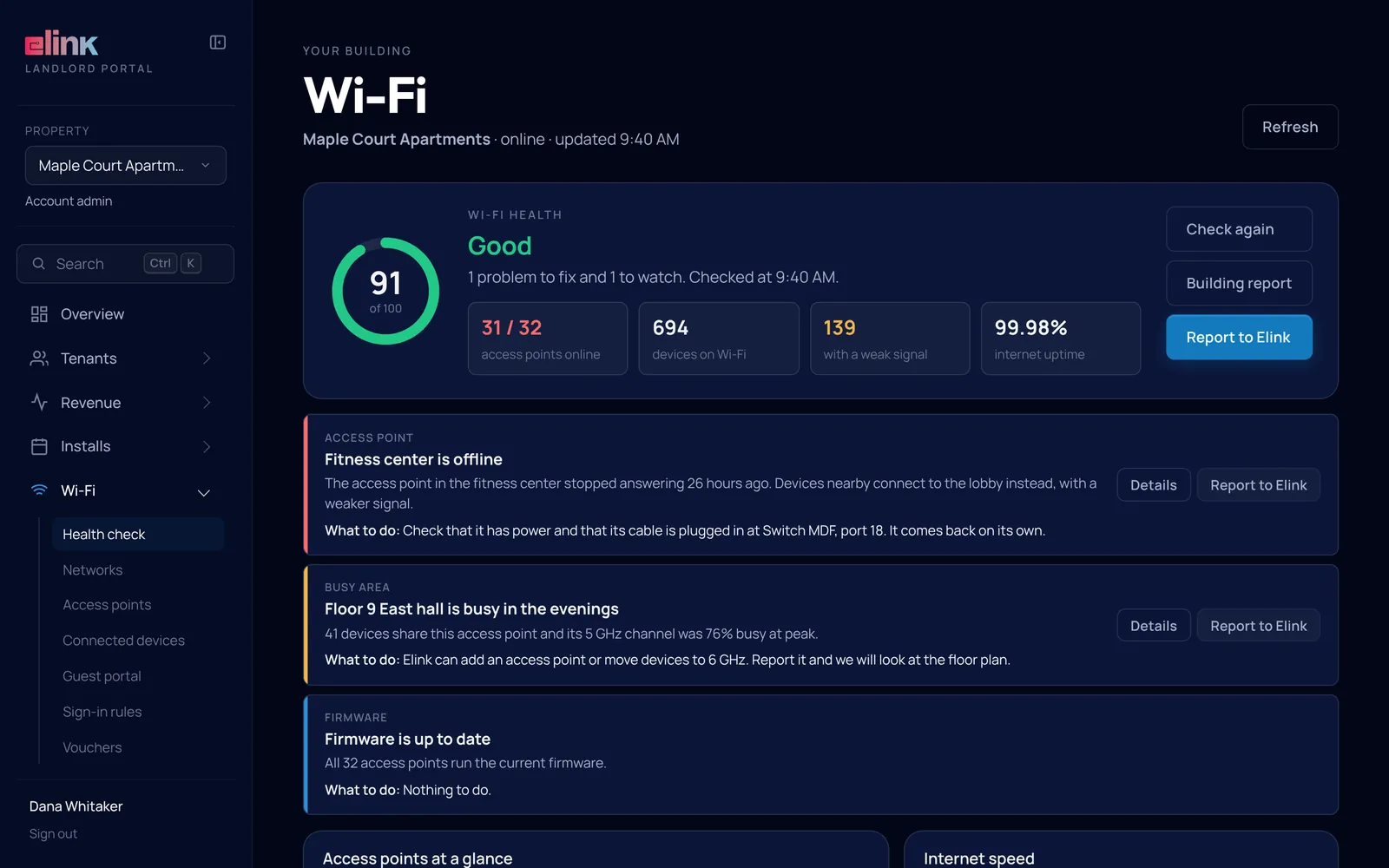
Health check
Know about problems before residents call
One score for the whole building, updated as you watch. Every problem is listed worst first, with what to do in plain words.
- Press Report to Elink on any problem and the ticket arrives with the details
- Each access point at a glance: devices, experience and how busy it is
- The last speed test and every event from the past 7 days
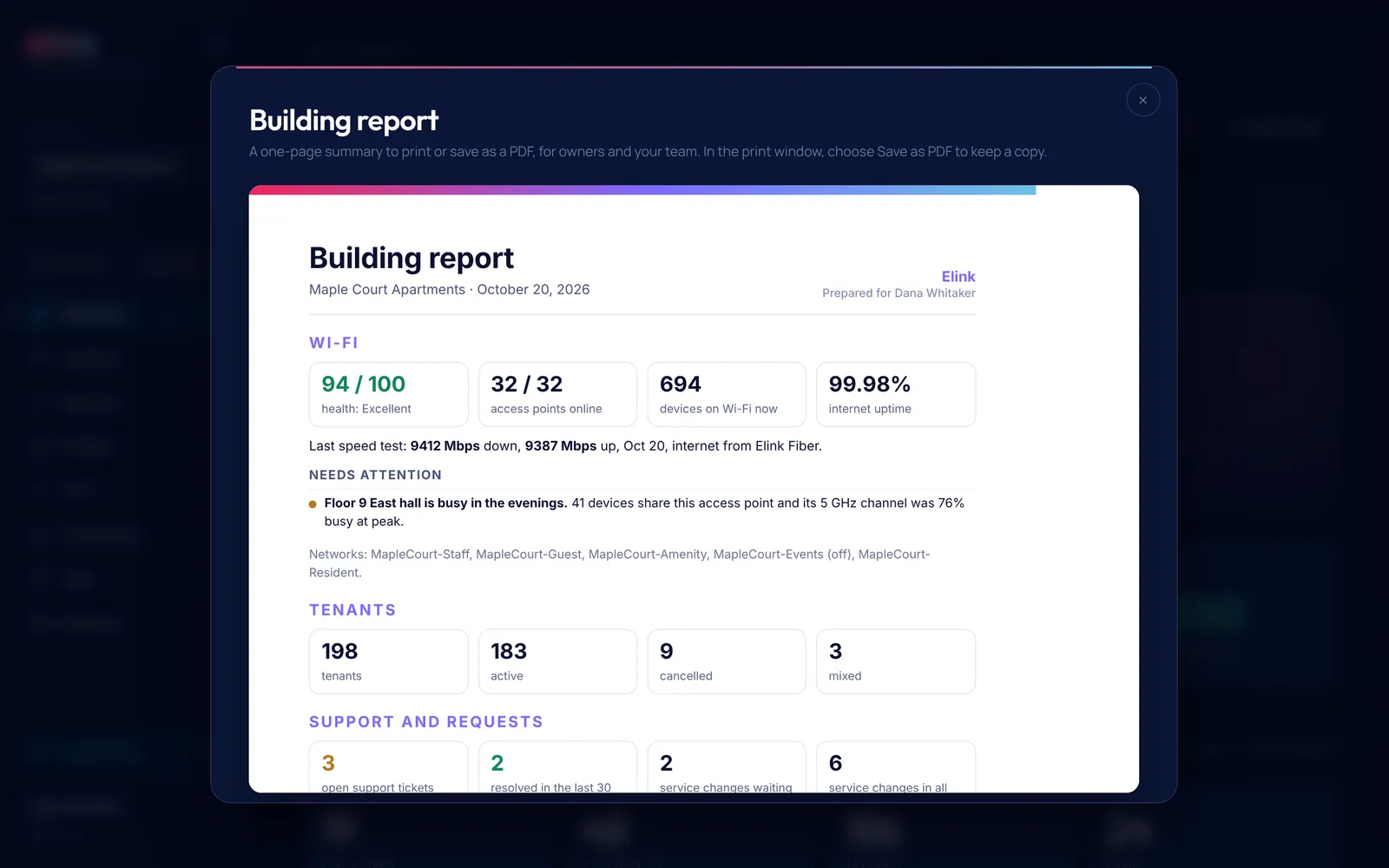
- A one-page Building report to print or save as a PDF
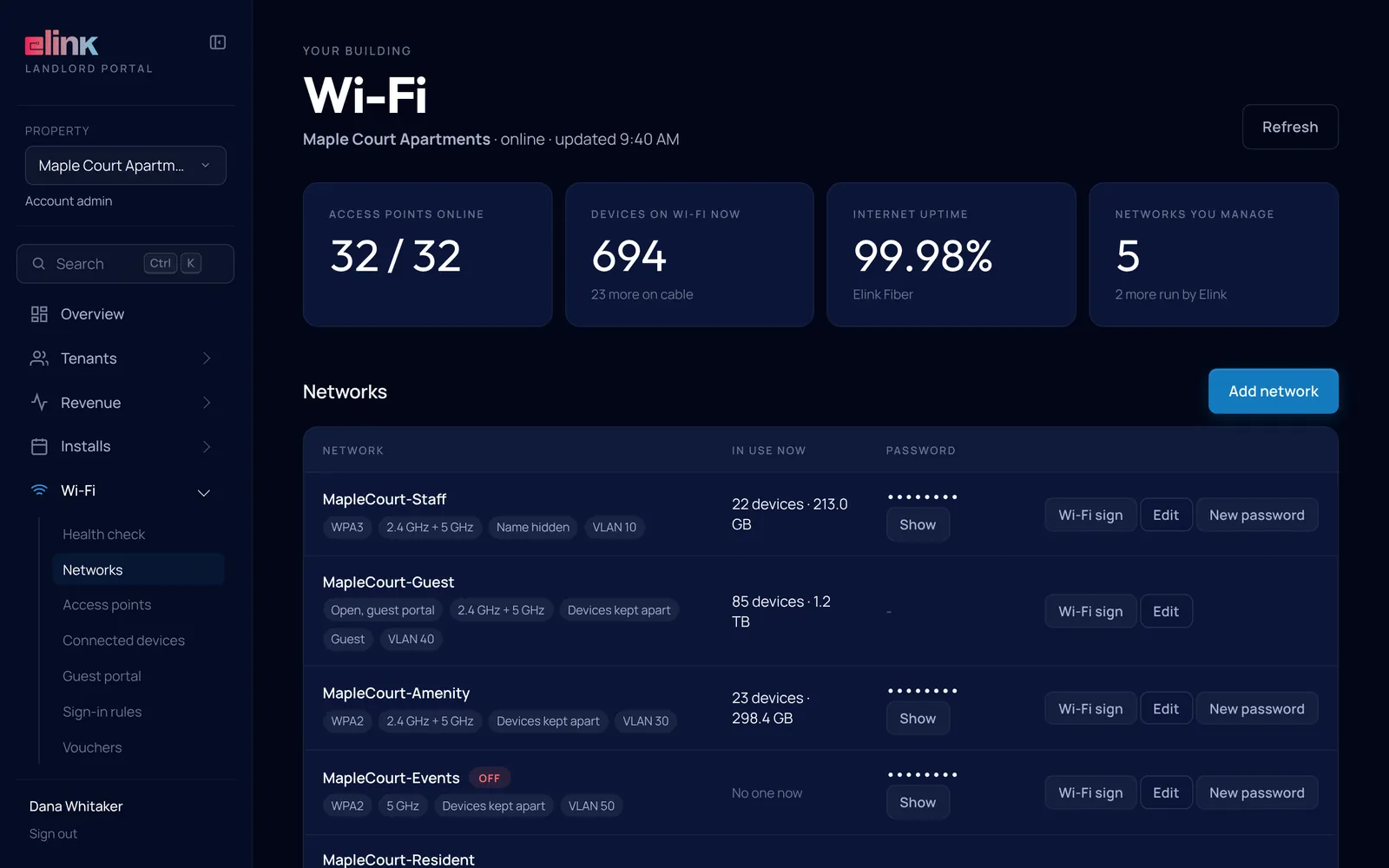
Networks and passwords
Change a password in seconds
Every network with its security, bands and the devices on it now. Show or copy a password, or set a new one, and the change goes out to the access points for you.
- A private password for each unit on the resident network
- Add networks, including guest networks with a sign-in page
- Hide a network name, pick its bands, or keep devices apart from each other
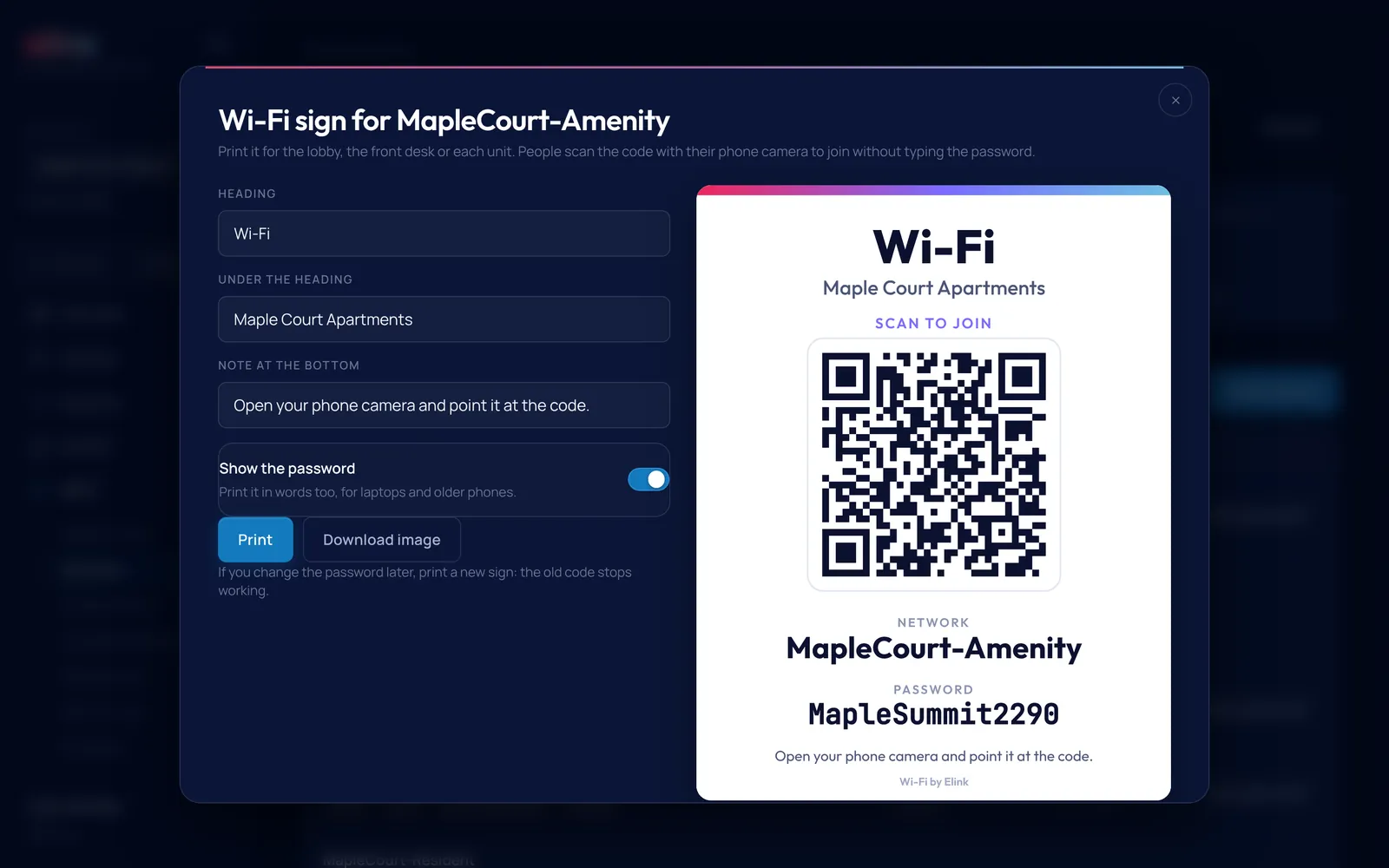
Wi-Fi sign
A Wi-Fi sign for the lobby
Print a sign with a QR code that people scan to join, with no password to type. Change the heading and note, and choose whether to print the password too.
- Print it, or download it as a picture
- Make one for each network: residents, amenity spaces and guests
- Reprint in a minute after you change a password
Access points
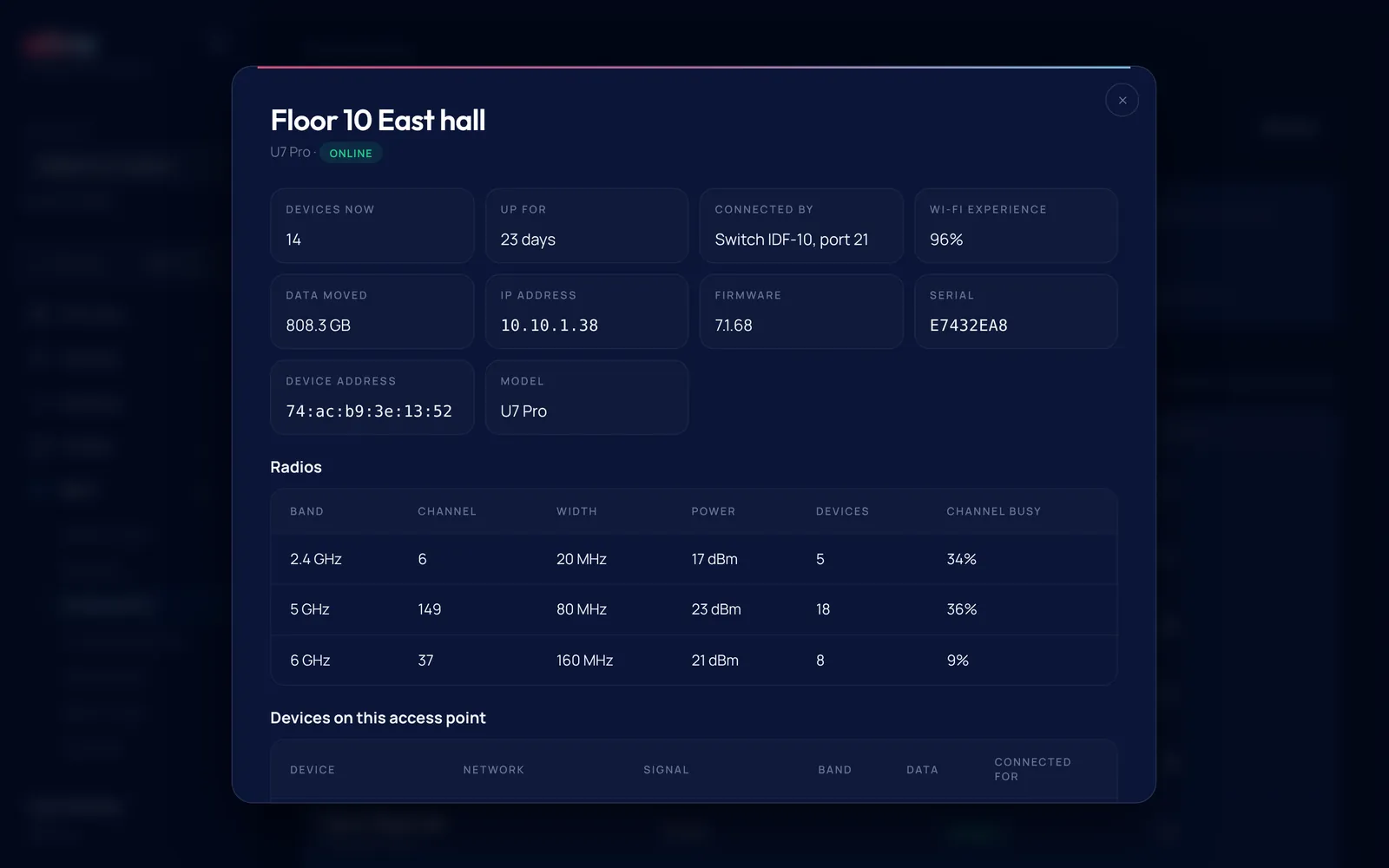
Find, rename and restart access points
Every access point with its status, model and how many devices it serves. Open one for its radios, channels and the devices on it.
- Blink its light to find it in a ceiling or a closet
- Restart one that is acting up, without a truck roll
- Offline ones show exactly where they were plugged in
Devices
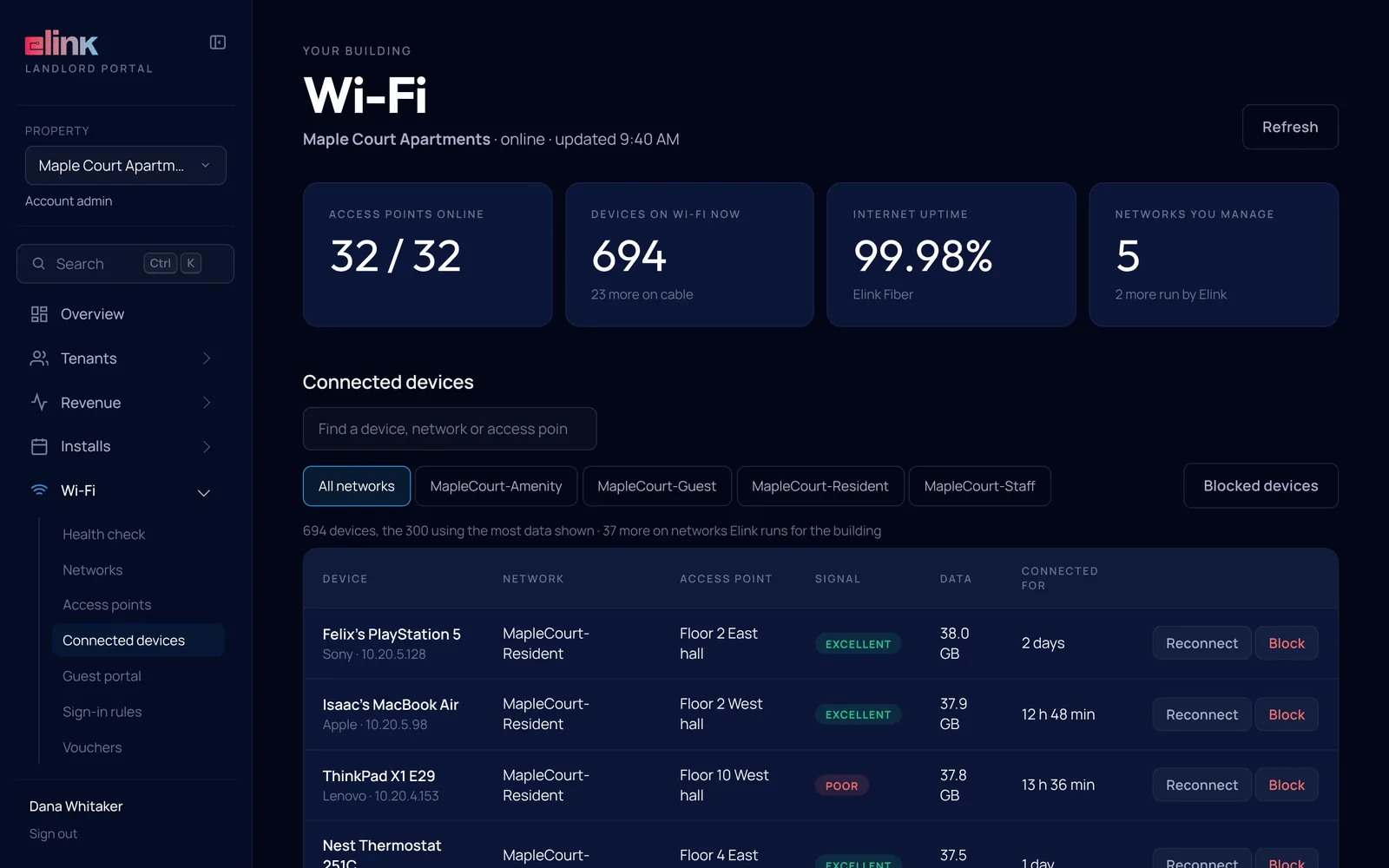
Help a stuck device, block an unwanted one
Find any device by name, network, access point or address, with its signal, data used and how long it has been connected.
- Reconnect a device that is stuck
- Block a device, and unblock it from the Blocked devices list
- Filter by network to see who is on guest Wi-Fi
Guest sign-in page
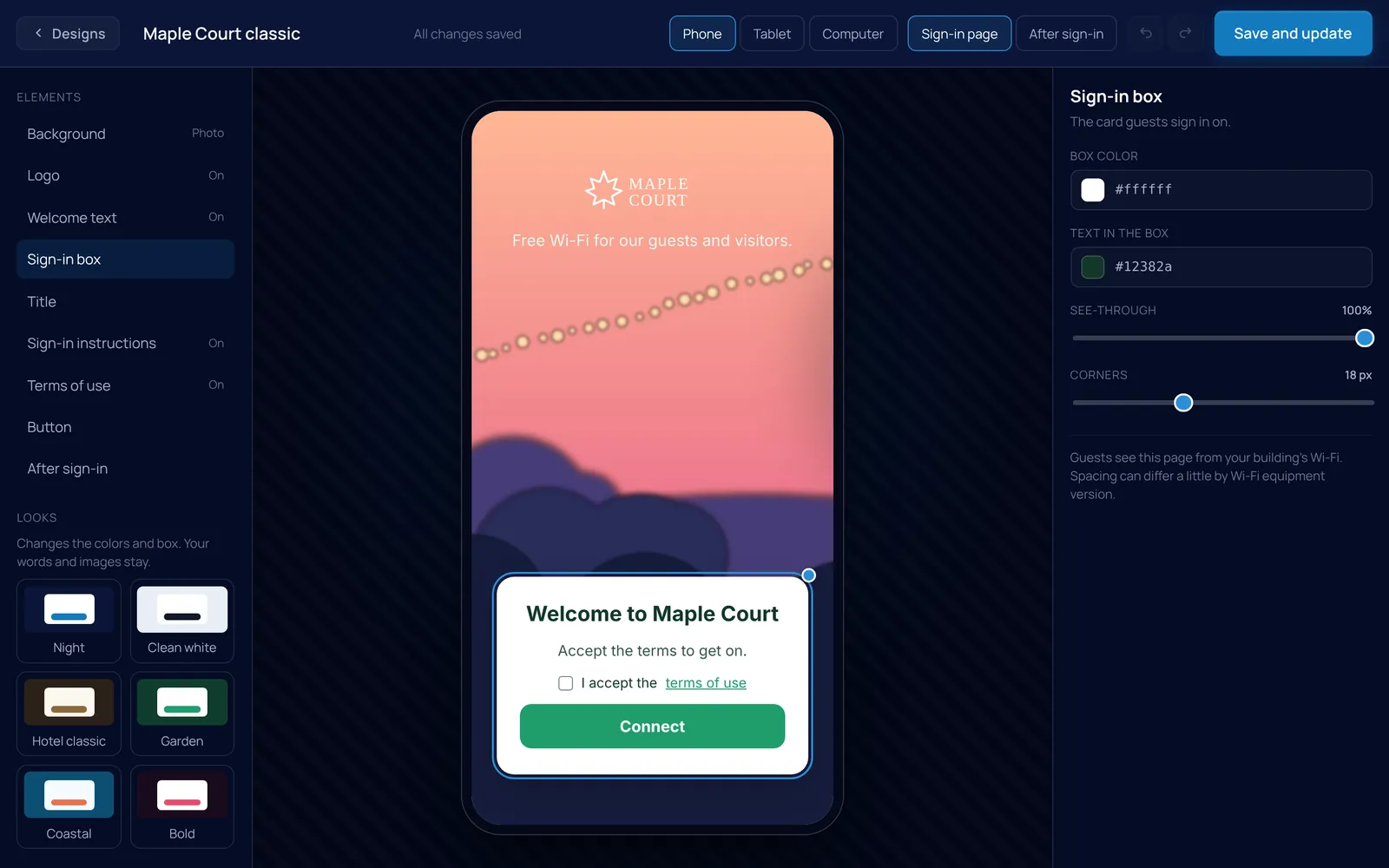
Design your own guest sign-in page
A visual builder for the page guests see when they join. Preview it on a phone, a tablet and a computer before it goes live.
- Six ready looks, from Clean white to Hotel classic
- Your photo, logo, welcome text, terms and button
- A color picker that checks the text stays readable
- Keep several designs and make one live at a time
Sign-in rules and vouchers
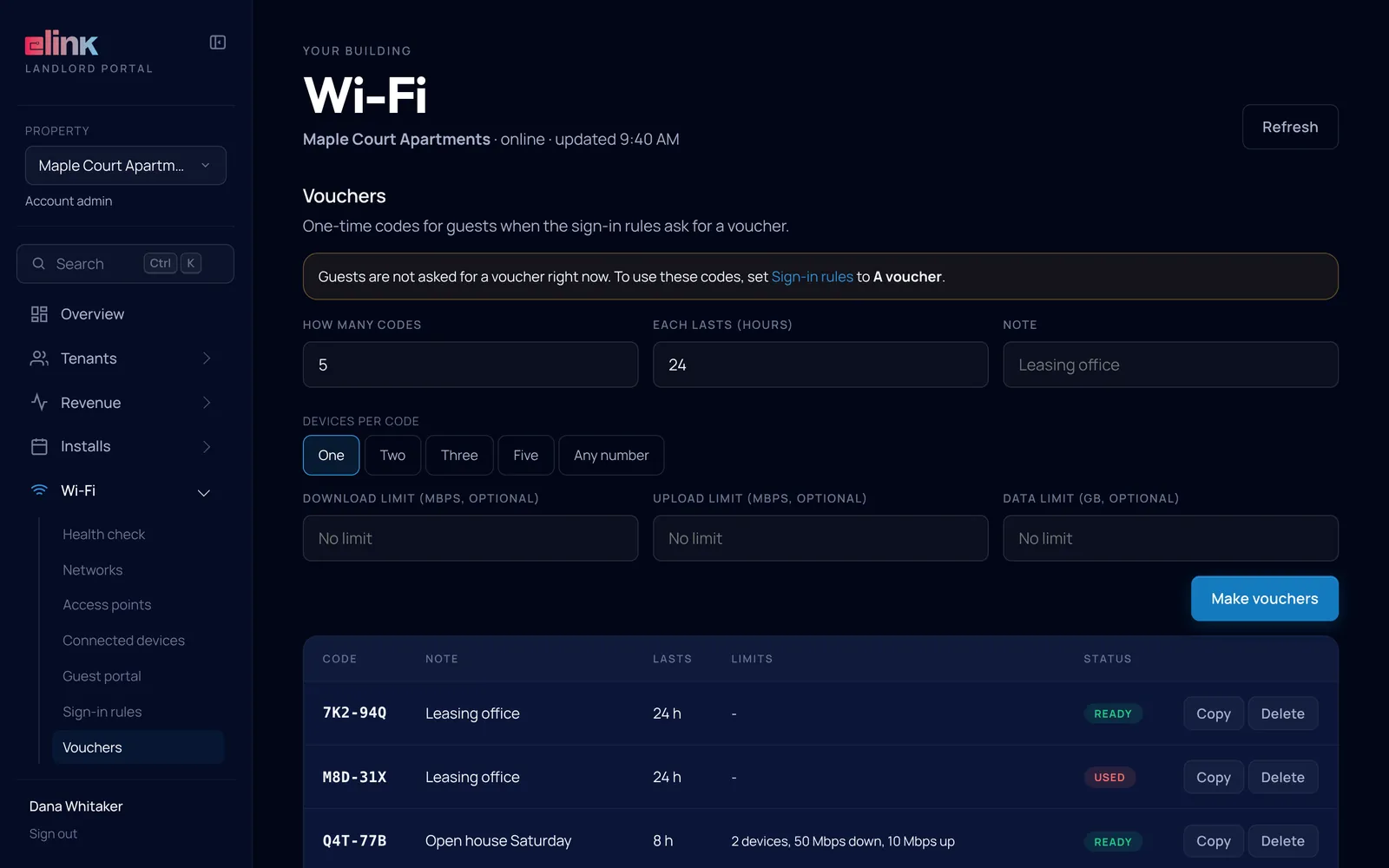
Decide who gets on, and for how long
Guests get in by accepting your terms, typing a shared password or entering a one-time voucher code. You set how long access lasts and the page they see after.
- Make batches of voucher codes for events, contractors or hotel stays
- Limit each code by time, devices, speed and data
- See which codes are ready and which are used
Built for how your property uses Wi-Fi
The same controls fit very different buildings.
Apartments and condos
A private password for every unit, building-wide networks for amenity spaces, and a health check your team can read.
Hotels and extended stay
A branded guest sign-in page, voucher codes for each stay, and limits so one guest cannot slow the rest.
Senior living and student housing
Common-area Wi-Fi you can watch, and devices you can help without waiting for a technician.
Wi-Fi management questions
Straight answers. Anything else, ask our team.
Do I need to be technical?
No. Every screen is in plain words, and every problem on the health check says what to do. If you would rather we handle it, press Report to Elink and the ticket already has the details.
Which buildings get these controls?
Buildings where Elink runs the Wi-Fi. Your Elink team turns on the controls that fit your property, and chooses which networks you manage. Some buildings only need the guest sign-in page.
Can I break something?
The portal only offers safe, everyday changes such as passwords, restarts and blocking a device. Elink still watches the network and fixes problems before your residents notice them.
How do residents get the password?
Residents find their Wi-Fi password at tenants.getelink.com/wi-fi-password, and you can print a QR-code sign so guests join without typing.
Can guests sign in with a code?
Yes. Turn on the guest sign-in page and choose how people get in: accept the terms, type a shared password, or enter a one-time voucher with its own time, device, speed and data limits.
Where do I log in?
At tenants.getelink.com/portal, with the same login you use for tenants, revenue and the Community Channel.
See the portal with your own buildings
We run a site survey, build your numbers, and set up your portal when the first property goes live.
Already an Elink resident? Get support here instead.